Edge snapping in WonderSnap, and the macOS setting to turn off
Drag a window to a screen edge and WonderSnap snaps it into place, the way Windows 11 does: halves, quarters, a center third or the whole screen, with a preview before you let go. On macOS 15 and later your Mac has its own edge tiling, and only one of the two can own an edge, so you switch macOS tiling off once. How to turn edge snapping on, what to switch off on your version of macOS, and what each edge does.
Turn on edge snapping
Open WonderSnap Settings > Snapping and tick "Snap windows when I drag them to a screen edge". New installs of WonderSnap 1.1.0 have it on already. If you installed WonderSnap before 1.1.0, tick it there once.
On macOS 14 (Sonoma) or earlier that is all: macOS has no edge tiling of its own, so edge snapping works as soon as the box is ticked. On macOS 15 and later, read on.
For the best experience, turn off click and hold
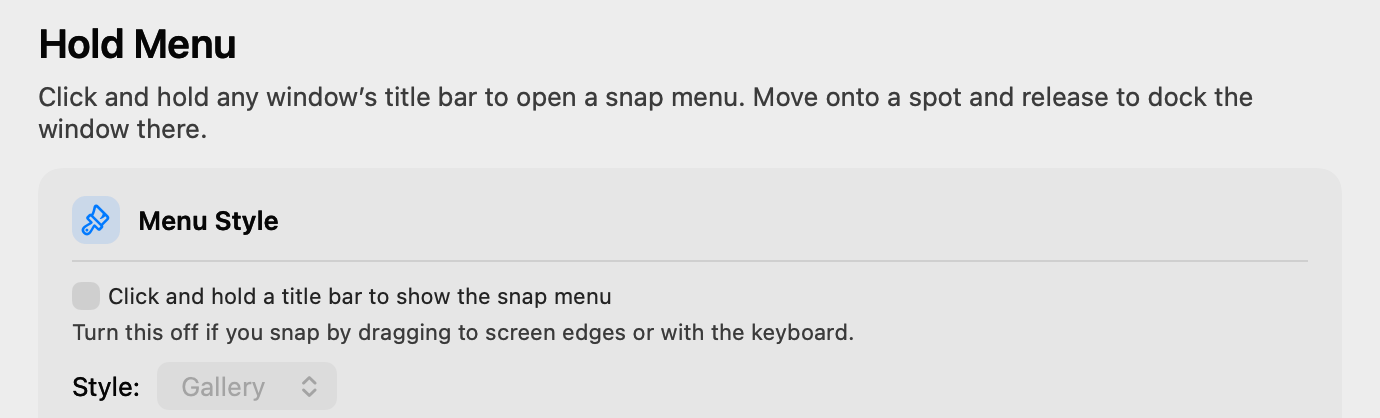
WonderSnap also has a snap menu that opens when you click and hold a window's title bar for a moment. If you snap by dragging to the edges, that menu can open when you pause before you start a drag. Turn it off in Settings > Hold Menu: untick "Click and hold a title bar to show the snap menu". New installs of WonderSnap 1.1.0 have it off already. The ⌃⌥ shortcuts and the ⌃⌥Space layout picker keep working.
Let WonderSnap have the edges
macOS 15 (Sequoia) and later tile windows when you drag them to an edge. While that is on, macOS keeps those edges and WonderSnap stays out of the way: it never fights macOS over the same drag. If you drag to an edge macOS still owns, WonderSnap reminds you, once.
The easy way: let WonderSnap do it
In Settings > Snapping, click Turn it off for me. WonderSnap switches off macOS edge tiling and top tiling, and nothing else. If you untick edge snapping later, WonderSnap turns macOS tiling back on for you.
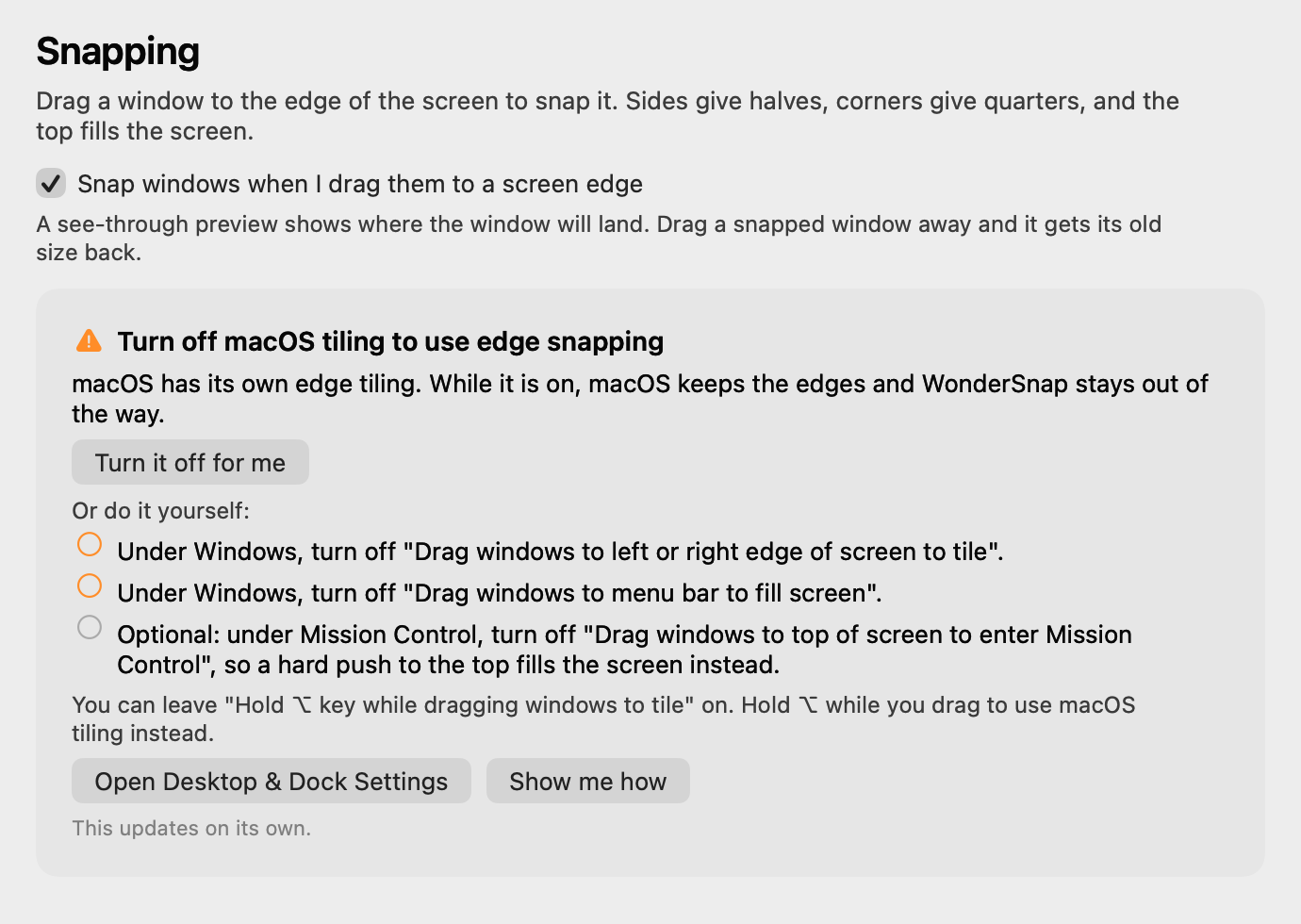
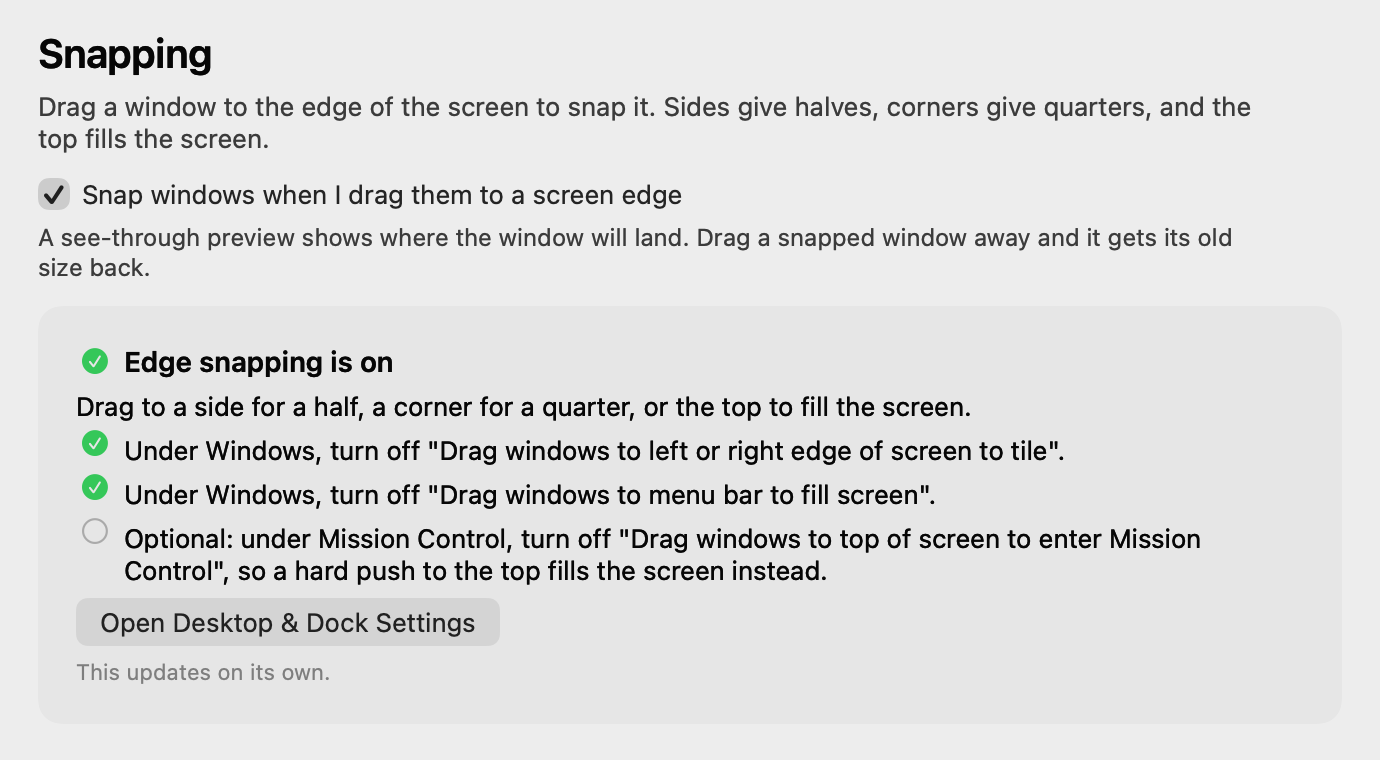
The pane says "This updates on its own": it ticks each step as you change things, whether you use the button or System Settings. When it shows Edge snapping is on, you are done.
The manual way: System Settings
Open System Settings > Desktop & Dock and scroll to Windows. Turn off these switches. Not sure which macOS you have? Choose Apple menu > About This Mac.
| Your macOS | Turn off |
|---|---|
| macOS 26 (Tahoe) and macOS 27 | Drag windows to left or right edge of screen to tile, and Drag windows to menu bar to fill screen |
| macOS 15 (Sequoia) | Drag windows to screen edges to tile, and Drag windows to menu bar to fill screen. On macOS 15.0 you may see only the first switch. |
| macOS 14 (Sonoma) and earlier | Nothing. macOS has no edge tiling, so there is nothing to turn off. |
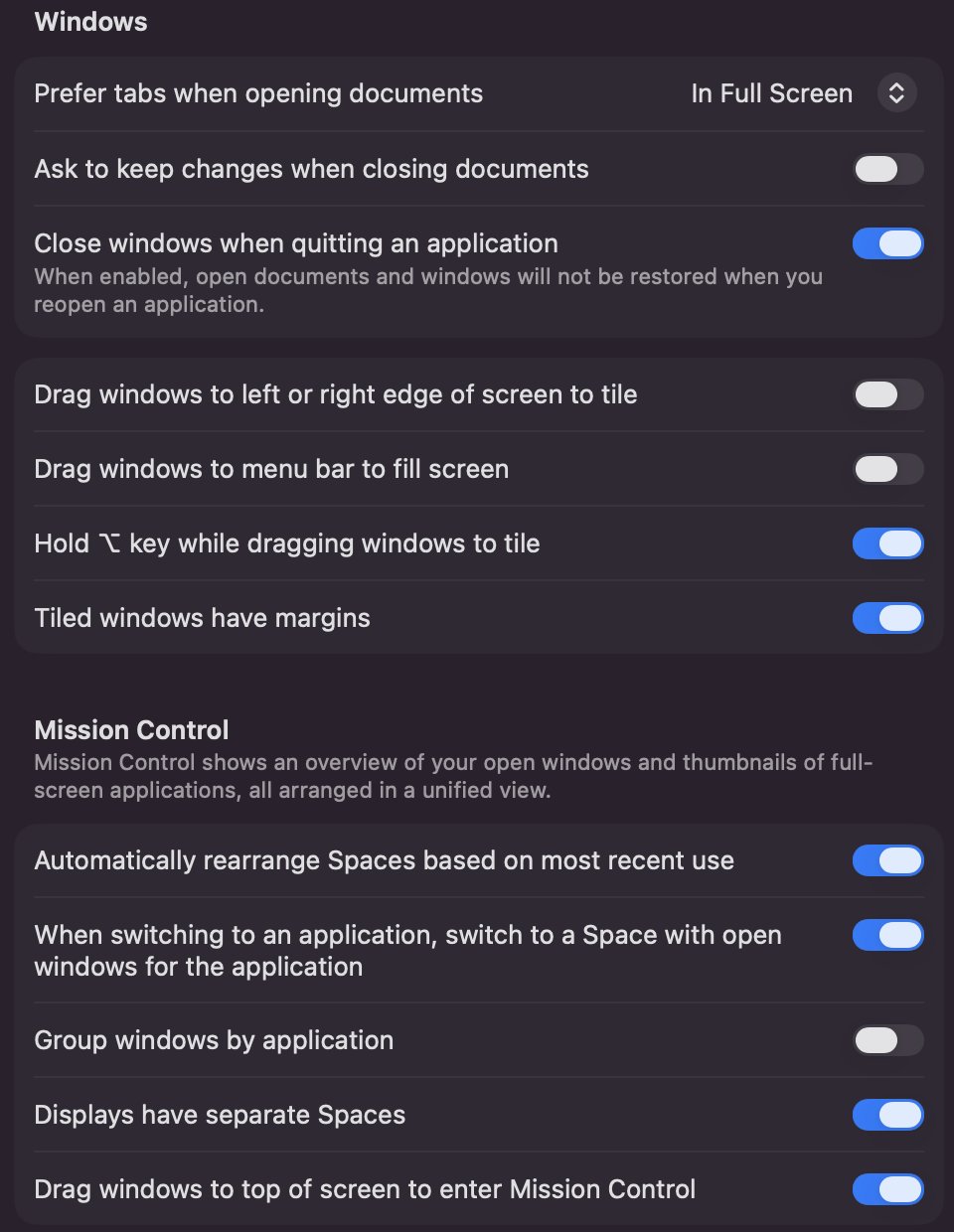
A few more switches nearby, on macOS 15, 26 and 27:
- Optional: "Drag windows to top of screen to enter Mission Control", under Mission Control. Turn it off so a hard push against the top of the screen fills the screen instead of opening Mission Control.
- "Hold ⌥ key while dragging windows to tile" can stay on. With it on, holding Option while you drag hands that one drag to macOS tiling, and WonderSnap steps aside.
- Stage Manager pauses edge snapping entirely. Turn Stage Manager off in Control Center, or in System Settings > Desktop & Dock.
- Switches dimmed? If your displays share one set of Spaces, macOS may dim these switches. Turn on "Displays have separate Spaces" under Mission Control first. It takes effect after you log out and back in.
What each edge does
Every edge is split into thirds, and each third is a different spot. Drag a window until the pointer touches an edge: a see-through preview shows where the window will land, and letting go puts it there.
| Drag to | Top or left third | Middle third | Bottom or right third |
|---|---|---|---|
| Left edge | Top-left quarter | Left half | Bottom-left quarter |
| Right edge | Top-right quarter | Right half | Bottom-right quarter |
| Top edge | Top-left quarter | Whole screen | Top-right quarter |
| Bottom edge | Left half | Center third | Right half |
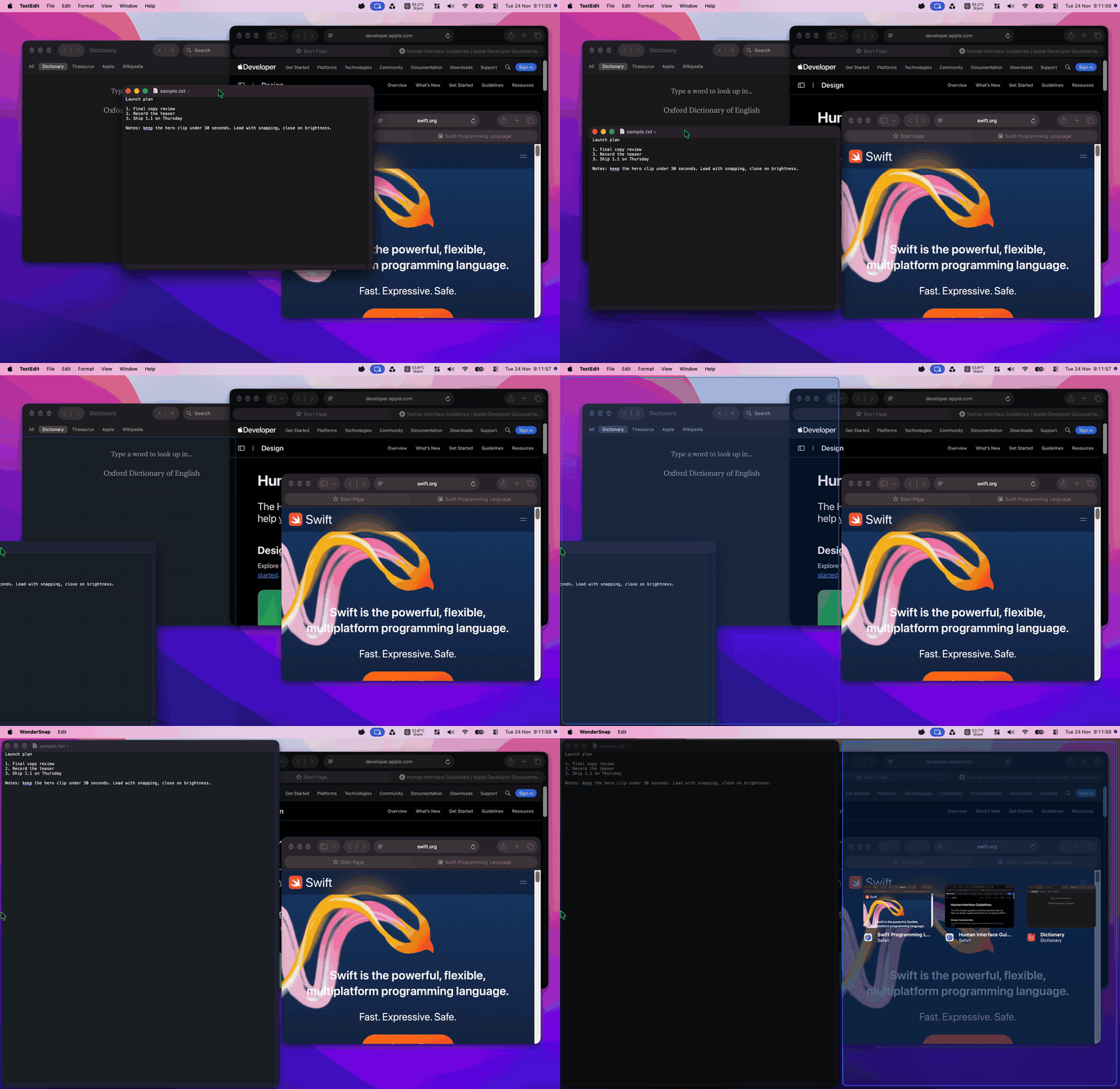
Drag a snapped window away and it gets its old size back, so you can drop it anywhere else at the size it had before you snapped it.
The snap bar: drop into your layouts
Drag a window up near the top middle of the screen and a small snap bar opens into your saved layouts. Move onto any zone of any layout and let go: the window goes into that zone.
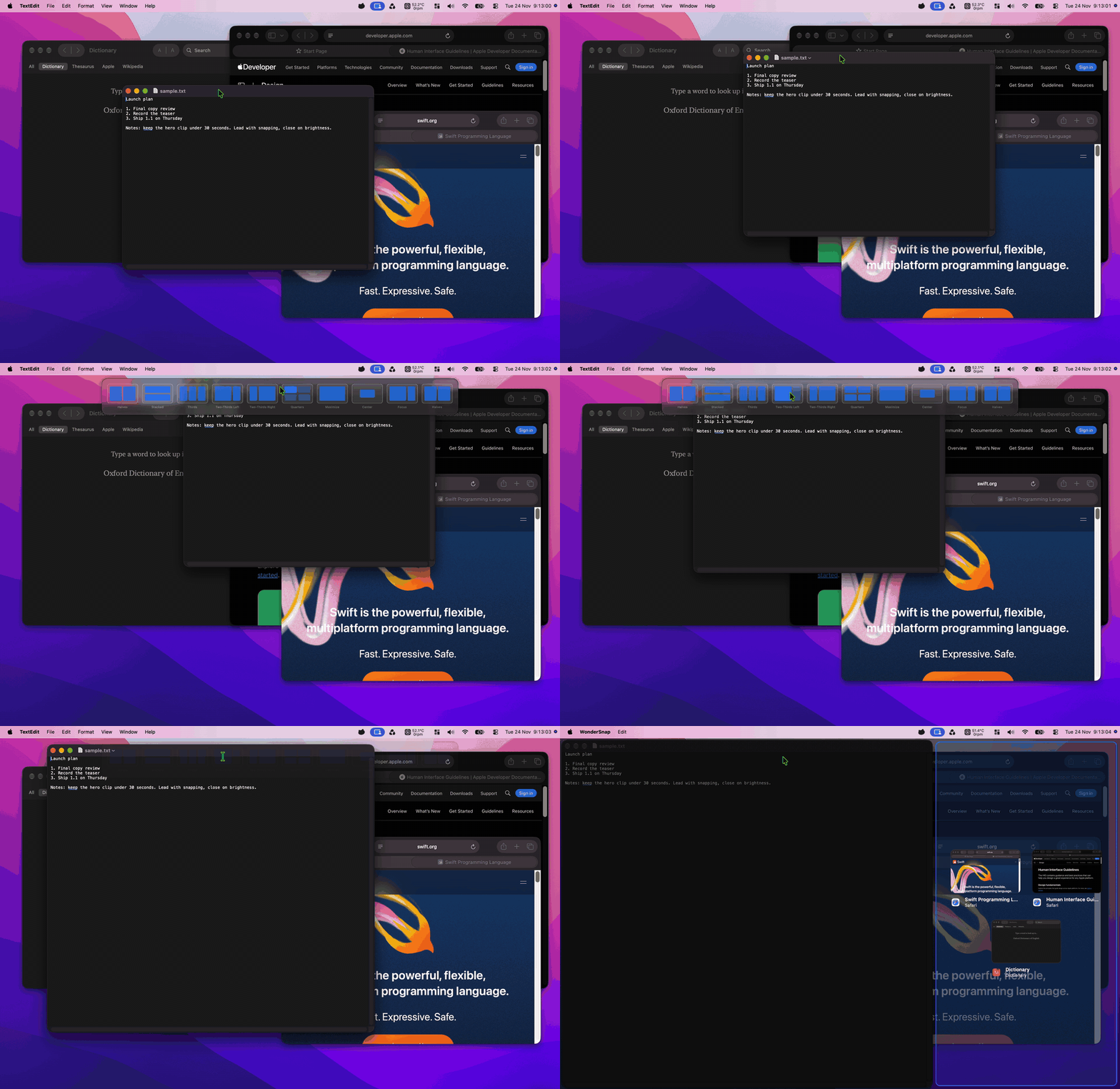
Edge snapping is one more way in. The ⌃⌥ shortcuts and the ⌃⌥Space layout picker work as before, and the click-and-hold snap menu is a switch in Settings > Hold Menu.
Questions
Why does macOS still tile my window when I drag it to an edge?
Because macOS edge tiling is still on, and WonderSnap leaves an edge macOS owns. Click Turn it off for me in WonderSnap Settings > Snapping, or turn off the tiling switches in System Settings > Desktop & Dock > Windows. If you hold Option while you drag, macOS takes that drag on purpose.
Does edge snapping work on macOS 14 Sonoma?
Yes. macOS 14 has no edge tiling of its own, so there is nothing to turn off. Tick Snap windows when I drag them to a screen edge in WonderSnap Settings > Snapping and it works straight away.
How do I go back to macOS tiling?
Untick Snap windows when I drag them to a screen edge in WonderSnap Settings > Snapping. If WonderSnap turned macOS tiling off for you, it turns it back on. If you turned it off yourself in System Settings, turn the same switches back on there.
Does edge snapping work with Stage Manager?
No. While Stage Manager is on, edge snapping pauses entirely, because Stage Manager arranges windows its own way. Turn Stage Manager off in Control Center or in System Settings > Desktop & Dock, and edge snapping works again.
Snap like Windows 11, just by dragging
Free for 7 days with every feature unlocked, no account and no card. Then $2 for a year, with no subscription and no auto-renewal, or $8 once for a lifetime license. Both unlock the same app: no tiers, everything included, no catch. macOS 14 or later, Apple Silicon and Intel.
Download for Mac See everything WonderSnap does