Window pictures in WonderSnap: Instant vs Cached
Dock previews and the Option-Tab window switcher show a picture of each window. One setting decides how often WonderSnap takes those pictures: Instant keeps them current by taking them ahead of time, Cached takes far fewer and reuses what it has. What each one does, why you may see the screen recording icon, and why your pictures never leave your Mac.
Where to find it
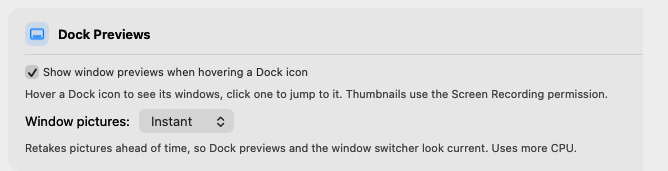
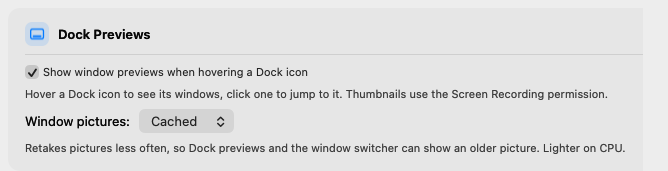
Settings > General > Dock Previews > Window pictures. The choice applies straight away to Dock previews and the window switcher, with no restart. Instant is the default.
What you see is the same in both modes
A preview always opens at once, with the picture WonderSnap already has. It does not wait for a new one, and a picture does not change while the preview is open. The two modes differ only in how often a new picture is taken in the background, so the next preview is more current (Instant) or the Mac does less work (Cached).
When each mode takes a picture
| When you | Instant | Cached |
|---|---|---|
| Move the pointer towards the Dock | Takes a picture of the app you are heading for and the next two along | Nothing |
| Rest on a Dock icon | Takes a picture of that app's windows, and of its neighbours | Takes a picture of that app's windows, only if they are more than a few seconds old |
| Slide across several Dock icons | Takes a picture for every panel straight away | Waits a quarter of a second, so an icon you only pass over costs nothing |
| Switch to another app | Takes a picture of the window you just left | Nothing |
| Press Option (before Option-Tab) | Takes a picture of the window you are using, of chat, video and terminal apps, and of any window with no picture yet | Only windows with no picture yet |
| Open the Option-Tab switcher | Takes a picture of any card older than a second and a half | Only cards with no picture yet |
| Keep working, minute by minute | At most one window a minute whose picture is over 15 minutes old | The same: at most one window a minute |
| Start WonderSnap | Nothing | One picture of every window, so the first previews are not empty |
Instant suits a Mac on power, or anyone who wants a chat or terminal window to look as it did a moment ago. Cached suits a laptop on battery, or anyone who would rather see the screen recording icon less often. A Cached picture can be minutes old, more after the Mac has sat idle.
Seeing the screen recording icon often is normal on Instant
macOS shows a screen recording icon in the menu bar while an app captures what is on screen. Each window picture WonderSnap takes is such a capture, so the icon appears for a moment every time. Instant takes pictures ahead of time (as your pointer nears the Dock, as you switch apps, as you press Option), so on Instant you will see the icon often. That is expected, not a sign that anything is being recorded. Cached takes far fewer pictures, so the icon appears much less.
Each picture is a single still image of one window. WonderSnap never records video or sound.

Your window pictures never leave your Mac
- Kept in memory only. Pictures are never written to disk, and they are gone when WonderSnap quits.
- Never sent anywhere. WonderSnap sends no window pictures and no screen content over the network, and has no analytics.
- Only two reasons to go online: checking for updates (once a day, which you can turn off in Settings > General) and activating or checking your license. Neither carries anything from your screen.
Screen Recording permission is optional. Without it, Dock previews and the switcher show app icons and window titles instead of pictures.
Questions
Why does the screen recording icon keep appearing in my menu bar?
macOS shows it while an app captures what is on screen, and every window picture WonderSnap takes for Dock previews and the Option-Tab switcher counts. On Instant, WonderSnap takes pictures ahead of time, so the icon appears often, for a moment each time. That is normal. Switch Settings > General > Dock Previews > Window pictures to Cached to see it much less.
Does WonderSnap record my screen or send it anywhere?
No. Each picture is a single still image of one window, kept in memory only and gone when WonderSnap quits. Nothing from your screen is sent over the network, and there are no analytics. WonderSnap goes online only to check for updates and to activate or check your license.
Which mode should I use on a laptop?
Cached, if battery matters more than up-to-the-moment pictures. It takes far fewer pictures, so your Mac does less work, and a preview may show a picture that is a few minutes old. Instant is the default and keeps pictures current.
Can I turn window pictures off completely?
Yes. Remove WonderSnap's Screen Recording permission in System Settings > Privacy & Security. Dock previews and the switcher then show app icons and window titles instead of pictures.
See every window, your way
Free for 7 days with every feature unlocked, no account and no card. Then $2 for a year, with no subscription and no auto-renewal, or $8 once for a lifetime license. Both unlock the same app: no tiers, everything included, no catch. macOS 14 or later, Apple Silicon and Intel.
Download for Mac See everything WonderSnap does