How to cut and paste files on a Mac
On Windows you press Ctrl+X, then Ctrl+V, and the file moves. On a Mac, select a file in Finder and open the Edit menu: Cut is there, but greyed out. Finder does move files, it just asks you to do it another way. Here are the three ways that work, and how to get a real Cut back.
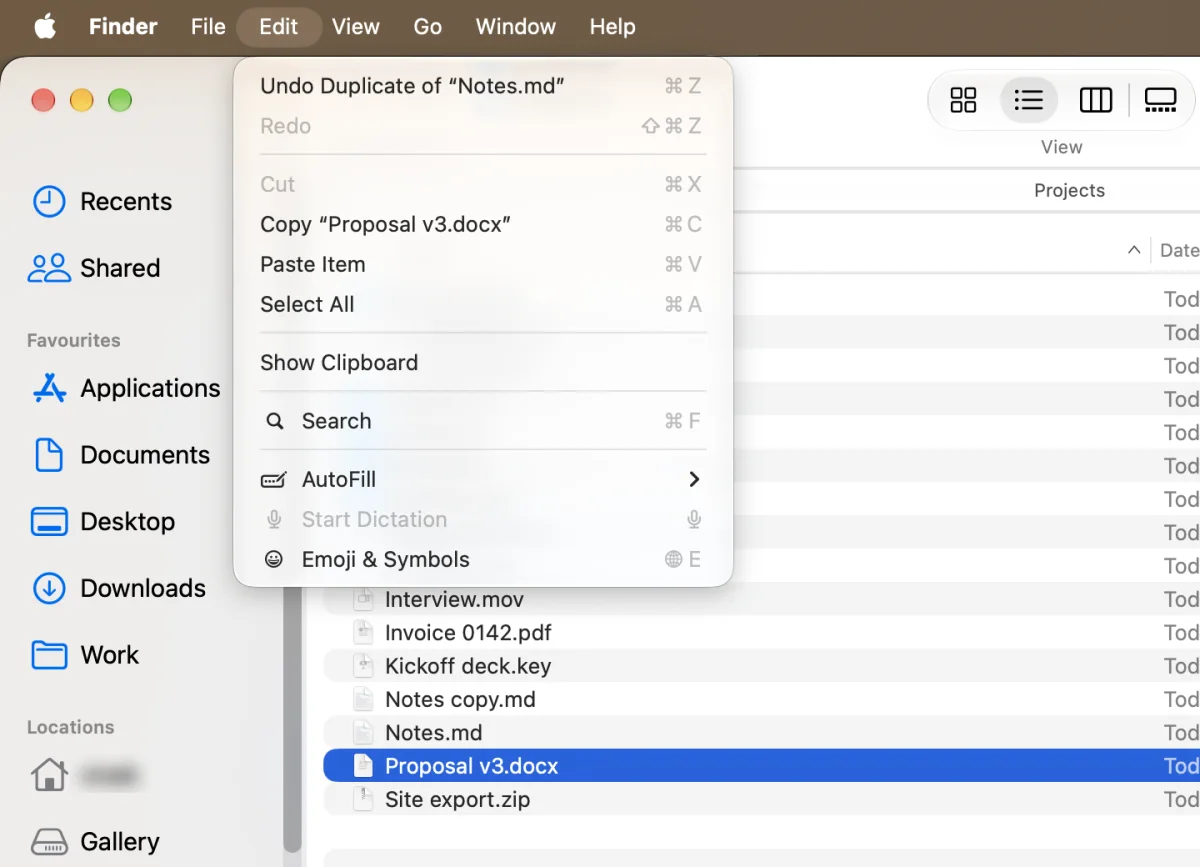
1. Copy, then Move Item Here
- Select the files and press ⌘C.
- Open the folder you want them in.
- Press ⌥⌘V. The files move, and the originals are gone from where they were.
Apple lists ⌥⌘V as moving the files on the clipboard to the current location (Apple: Mac keyboard shortcuts). Plain ⌘V pastes a copy and leaves the originals behind. If you prefer menus, hold Option with the Edit menu open and Paste Item becomes Move Item Here.
2. Drag, and know which key changes what
- Same disk: dragging moves. Hold Option while you drag to copy instead.
- Another disk: dragging copies. Hold Command while you drag to move instead.
Both rules are from Apple's guide to organising files. They are easy to mix up, which is why so many people end up with two copies of everything.
3. Real cut and paste, like Windows
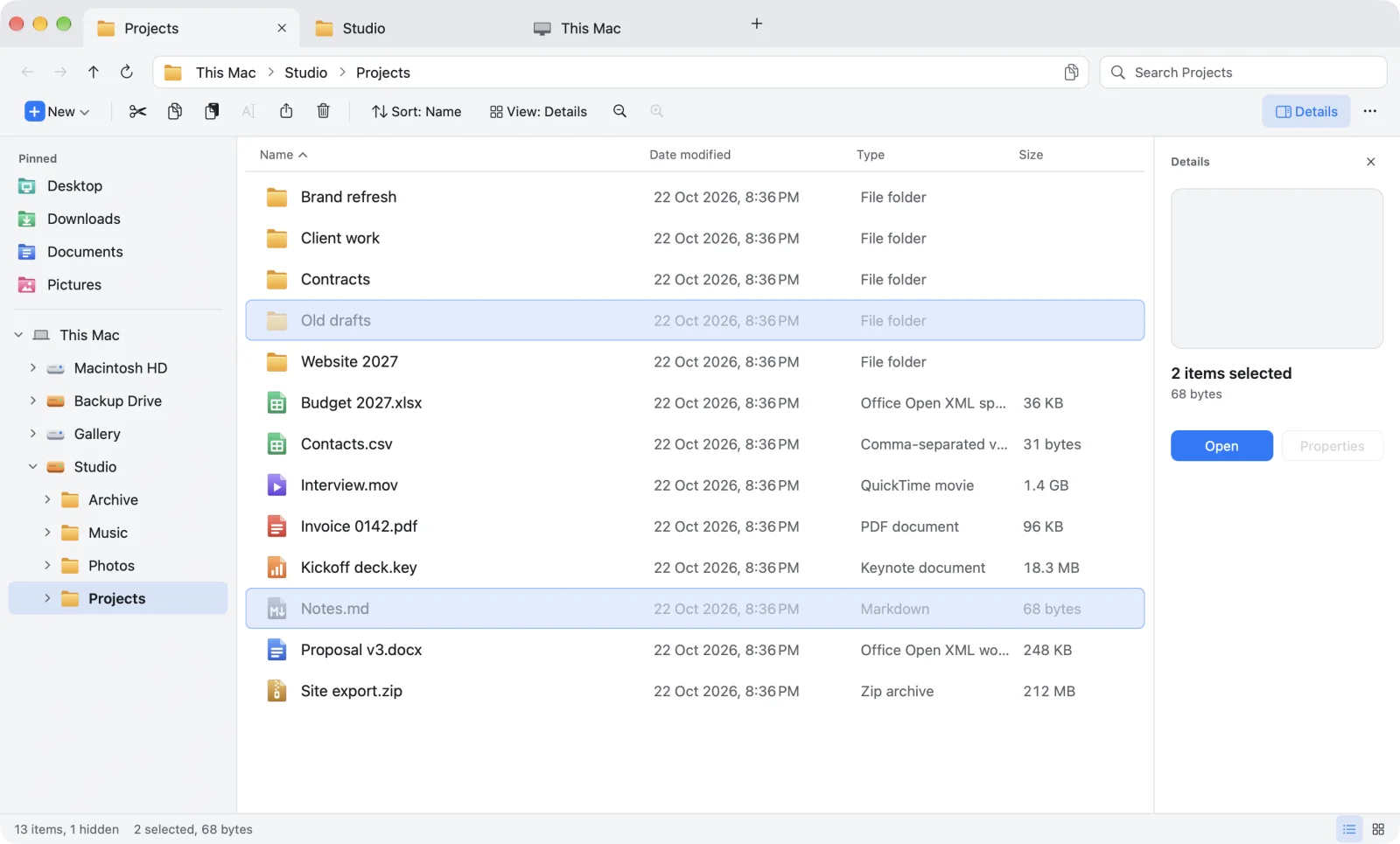
Origin, an Explorer-style file manager for Mac, gives you Cut back. Select files, press ⌘X and they fade in the list so you can see what is about to move. Open the destination, press ⌘V, done. It works across disks too, and Undo puts things back.
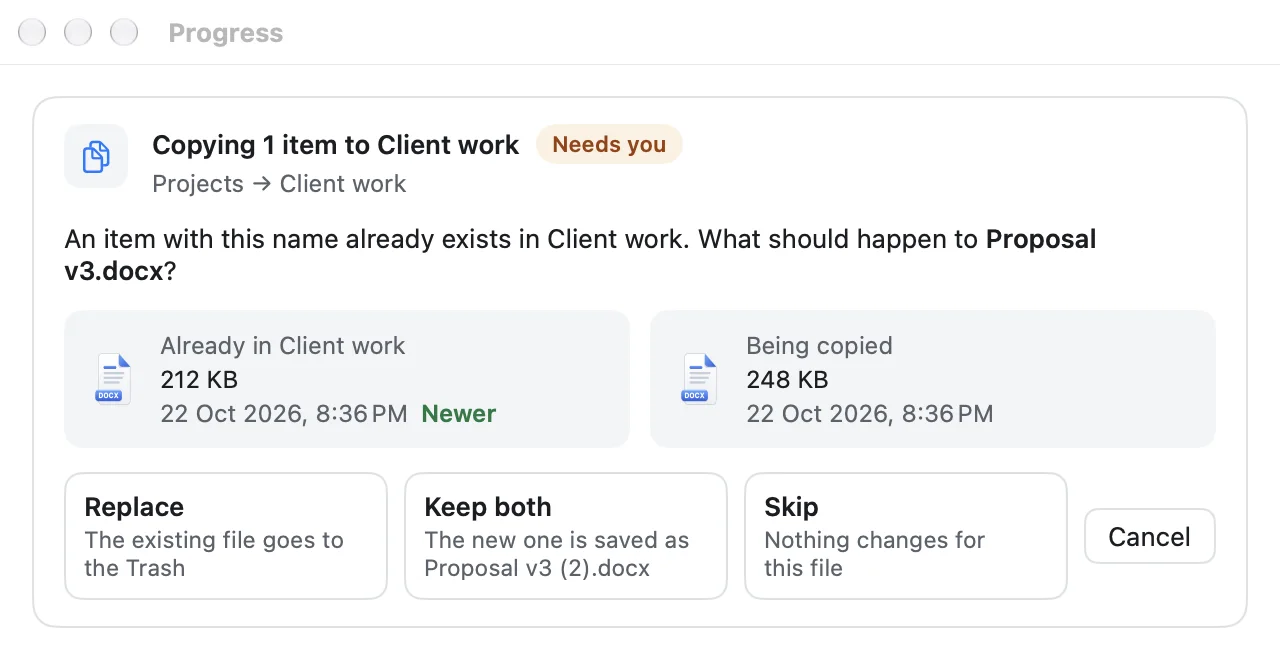
What happens when the file is already there
Origin never replaces a file without asking. It shows both versions with their sizes and dates, marks which one is newer, and lets you choose Replace, Keep both or Skip. If you replace, the old file goes to the Trash rather than disappearing. And your original stays where it is until its copy has been checked on disk.
| Task | Windows File Explorer | Finder | Origin |
|---|---|---|---|
| Cut a file | Ctrl+X | ✕ Cut is greyed out | ✓ ⌘X |
| Move what you cut or copied | Ctrl+V | ⌥⌘V | ⌘V |
| See what is about to move | Cut items fade | ✕ | ✓ Cut items fade |
| Undo a move | Ctrl+Z | ⌘Z | ⌘Z |
Questions
Why is Cut greyed out in Finder?
Finder does not cut files. With a file selected, the Cut command in the Edit menu stays greyed out. To move a file, copy it with Command-C and paste it with Option-Command-V, or drag it.
What does Option-Command-V do on a Mac?
It moves the items you copied into the current folder, removing them from where they were. Plain Command-V pastes a copy and leaves the originals in place.
Does Command-X work on files in Finder?
No. Command-X cuts text, for example while you rename a file, but it does nothing to a selected file. Use Command-C followed by Option-Command-V instead, or an app with real cut and paste such as Origin.
How do I move files to an external drive instead of copying them?
In Finder, hold the Command key while you drag the files onto the drive. A plain drag to another disk copies. In Origin, cut with Command-X and paste with Command-V; it moves across disks too.
Sources: Apple: Mac keyboard shortcuts · Apple: Organize files in folders on Mac
Cut, paste, moved. Finally.
Origin looks and works like Windows File Explorer, made properly for the Mac: a folder tree, an address bar, a command bar, tabs and real cut and paste. The beta is open now on TestFlight, and Origin is coming soon to the Mac App Store for macOS 14 or later. Join the beta and try it first.
Join the beta See the Origin file explorer for Mac