Finder icon size, thumbnails and one view for all folders
Finder remembers a view for each folder: icons here, a list there, a different icon size in each. That is flexible, and it is also why so many people search for "Finder use as defaults doesn't work". Here is where each setting lives in Finder, what Use as Defaults really does, and how a File Explorer style app handles views instead.
Where Finder keeps view settings
Open a folder and choose View > Show View Options (⌘J). For icon view you get Group By, Sort By, icon size, grid spacing, text size and label position, and at the bottom a Use as Defaults button (Apple: Change how folders are displayed).
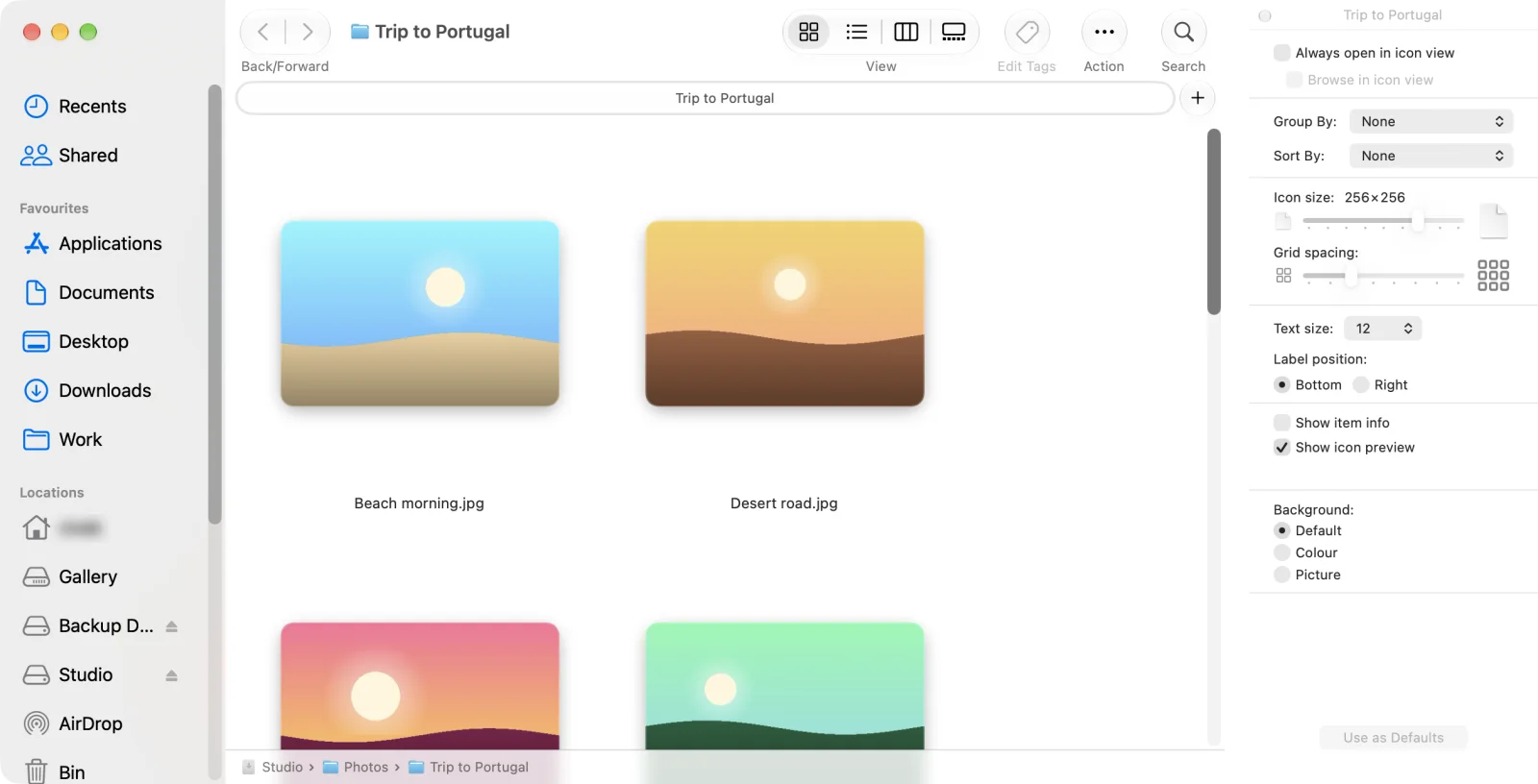
What Use as Defaults does, and why it seems not to work
Apple describes Use as Defaults as applying the current view settings to the Finder folders that use the same view. Two things trip people up. It covers one view at a time, so setting it in icon view does nothing for list view. And in practice, folders whose view you had already changed tend to keep their own settings, so they look as if they ignored you.
Tidy icons and folders on top
- Tidy up icons: in icon view, choose View > Clean Up, or View > Clean Up By to line icons up by name, kind or date (Apple: Sort and arrange items).
- Keep it tidy: set Sort By in View Options so new items join the order instead of landing wherever there is space.
- Folders on top: Finder Settings > Advanced > Keep folders on top, "In windows when sorting by name" (Apple: Change Finder settings).
Views that stay put, like File Explorer
Origin keeps it simple. Thumbnails sit in a grid that reflows as you resize the window, so they never overlap and never need cleaning up. A slider in the status bar sets their size. Folders sit on top by default, then files, in whatever order you sort by.
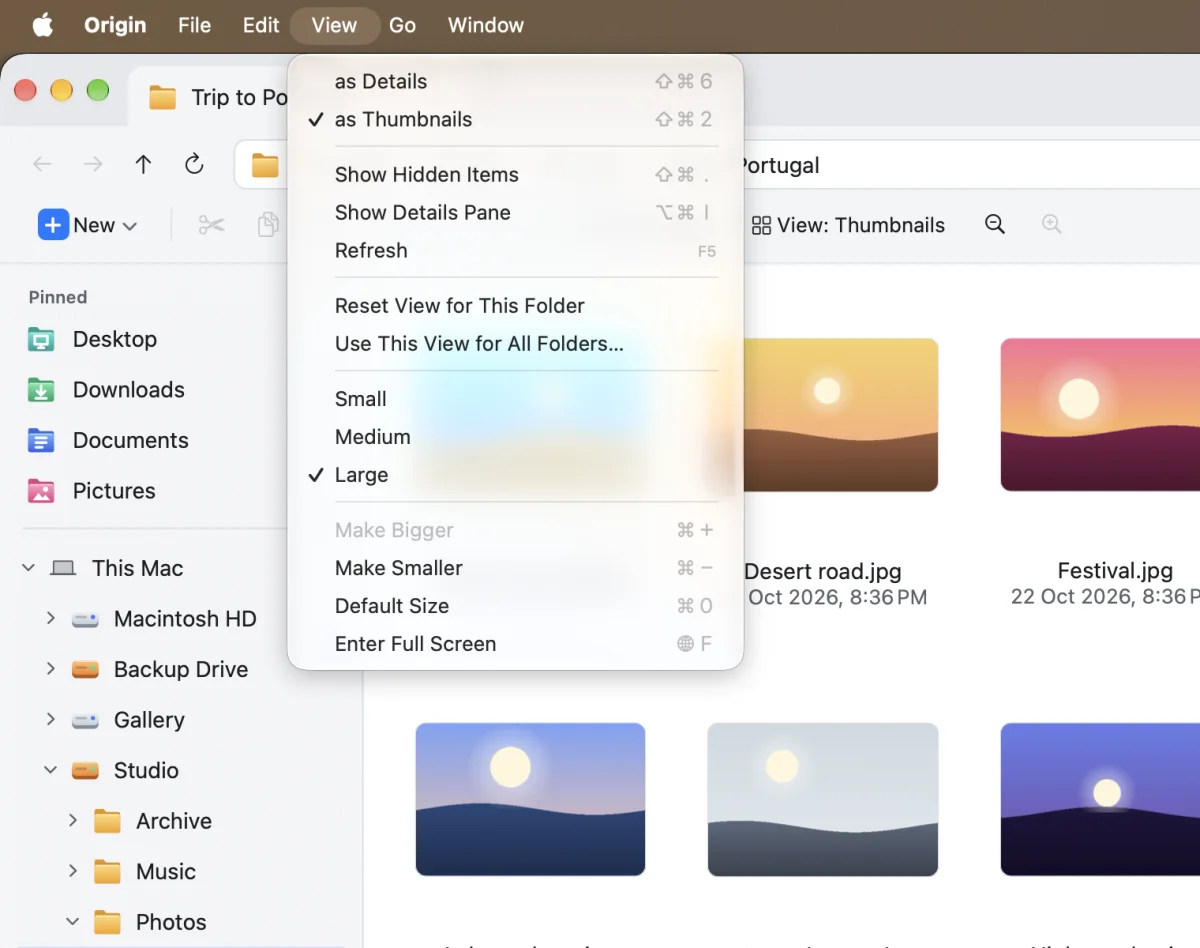
Each folder remembers its own view, sort order and thumbnail size. When you want one look everywhere, View > Use This View for All Folders applies it to every folder, and Reset View for This Folder takes one folder back to that default.
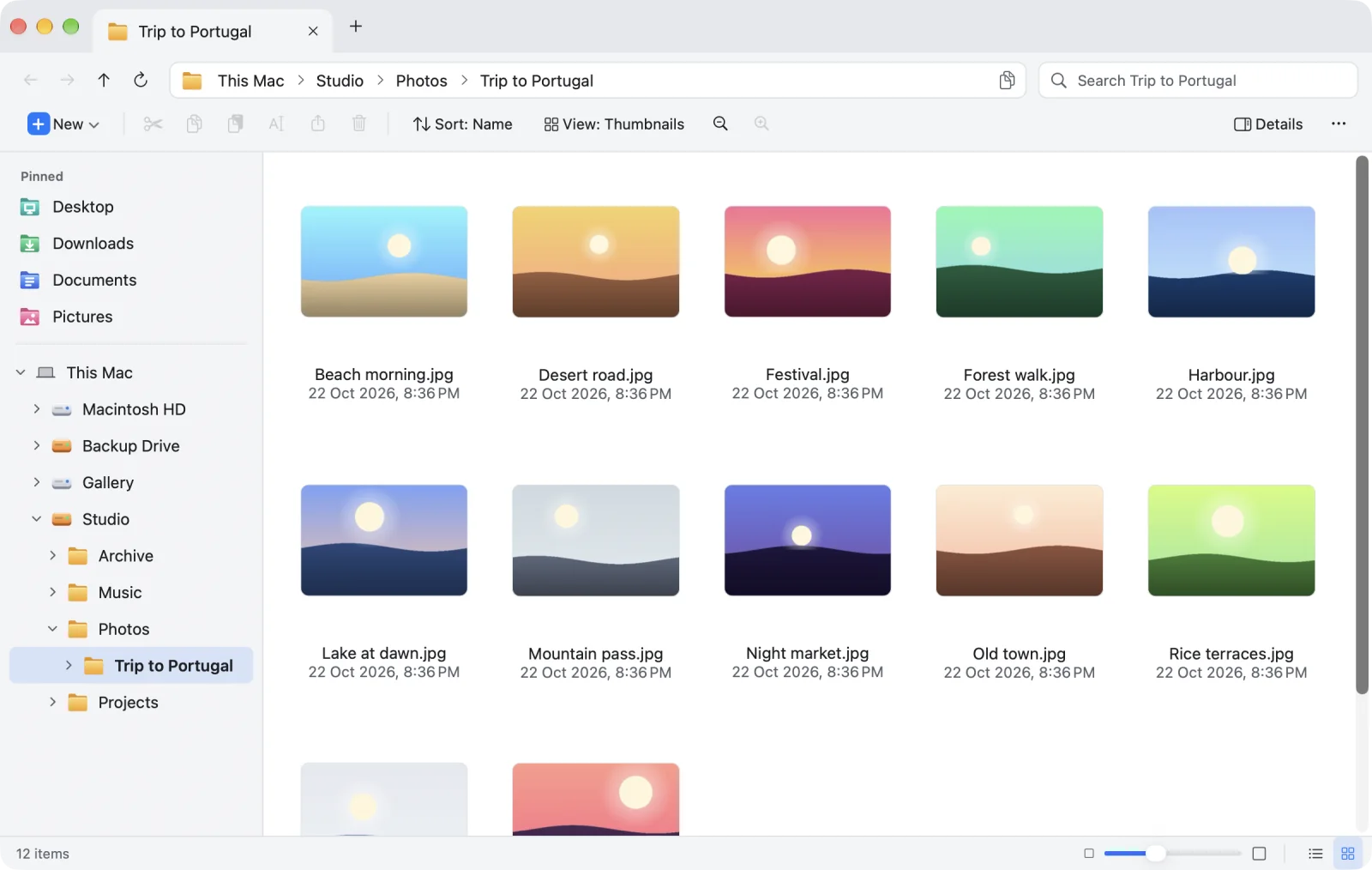
| Finder | Origin | |
|---|---|---|
| Thumbnail size | View Options slider, per folder | Status bar slider, per folder |
| Icons never overlap | Clean Up, or set Sort By | ✓ Always a grid |
| Folders on top | Finder Settings > Advanced | ✓ By default |
| One view for every folder | Use as Defaults, per view type | Use This View for All Folders |
| Reset one folder | Not listed | Reset View for This Folder |
Questions
Why does Finder's Use as Defaults not work?
Use as Defaults applies to folders that use the same view, one view type at a time, and folders whose view you already changed keep their own settings. So a folder you customised earlier, or a folder in a different view, will not follow the new default.
How do I change icon size in Finder?
Open the folder, choose View > Show View Options (Command-J) and drag the Icon size slider. The size applies to that folder; click Use as Defaults to apply it to other folders in icon view.
How do I keep folders on top in Finder?
Open Finder Settings, choose Advanced and turn on Keep folders on top in windows when sorting by name. There is a separate option for the desktop.
Can Origin use one view for every folder?
Yes. Set a folder up the way you like and choose View > Use This View for All Folders. Each folder can still have its own view, and Reset View for This Folder takes it back to the default.
Sources: Apple: Change how folders are displayed in the Finder · Apple: Sort and arrange items in the Finder · Apple: Change Finder settings
Thumbnails that line up and stay the size you set
Origin looks and works like Windows File Explorer, made properly for the Mac: a folder tree, an address bar, a command bar, tabs and real cut and paste. The beta is open now on TestFlight, and Origin is coming soon to the Mac App Store for macOS 14 or later. Join the beta and try it first.
Join the beta See the Origin file explorer for Mac