How to get a folder tree view on a Mac
In File Explorer, the left side of the window is a tree: every drive and folder, expandable in place, with where you are highlighted. Finder's sidebar looks similar at first glance, but it is a flat list of favourites and locations. There is no tree to expand. Here is how to get as close as Finder allows, and how to get the real thing.
What Finder's sidebar actually is
The sidebar shows Favourites (Applications, Documents, Desktop, Downloads and anything you drag in), Locations (your Mac, drives, AirDrop, the Bin) and Tags. Click one and the window jumps there. You cannot expand a drive in the sidebar to see the folders inside it.
Closest thing #1: list view with disclosure triangles
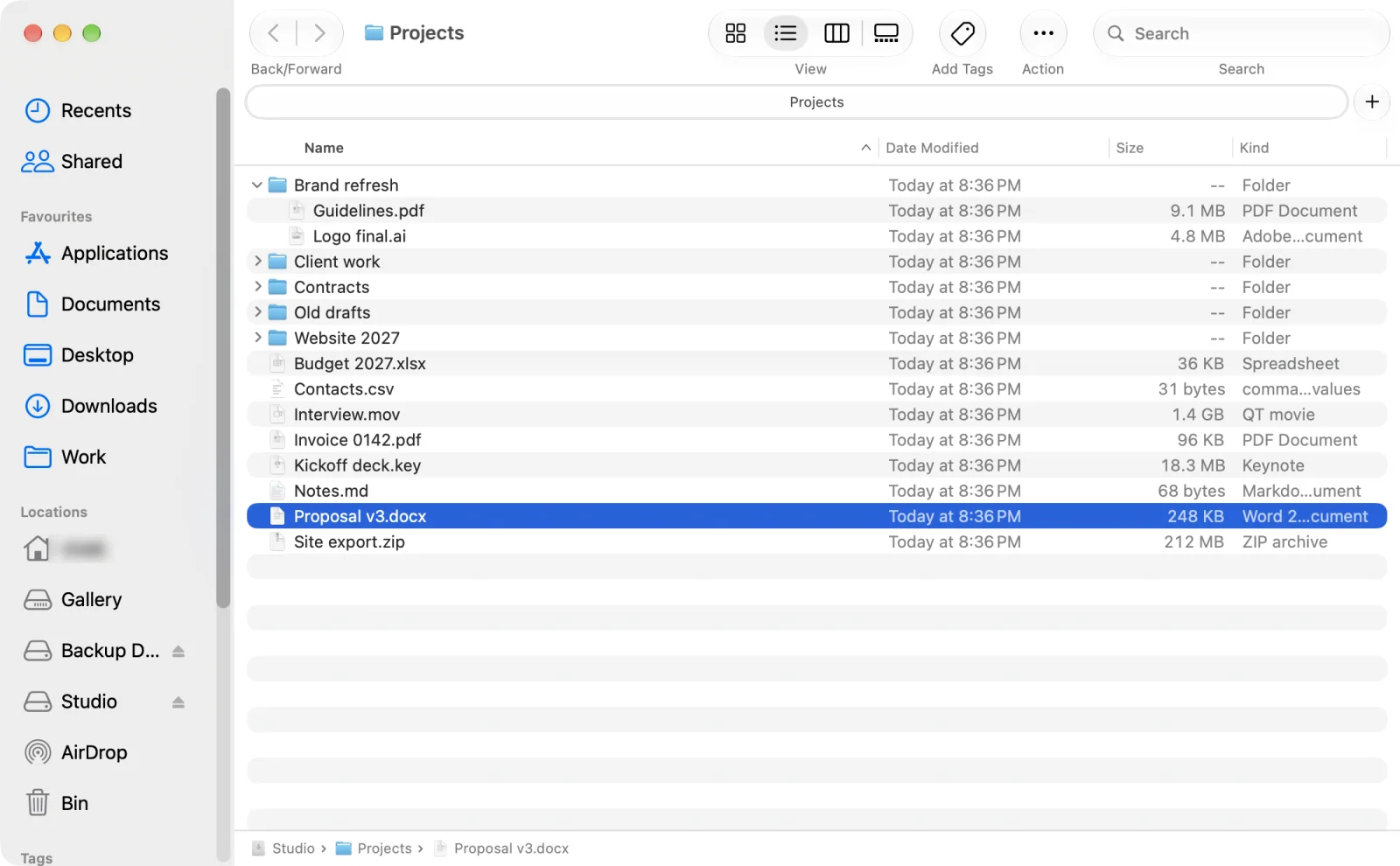
Switch to list view (⌘2). Every folder gets a small triangle; click it to show what is inside without leaving the folder you are in. Press Right Arrow to open the selected folder in place. Option-click a triangle to open every folder inside it at once. Both only work in list view (Apple: Mac keyboard shortcuts).
Closest thing #2: column view
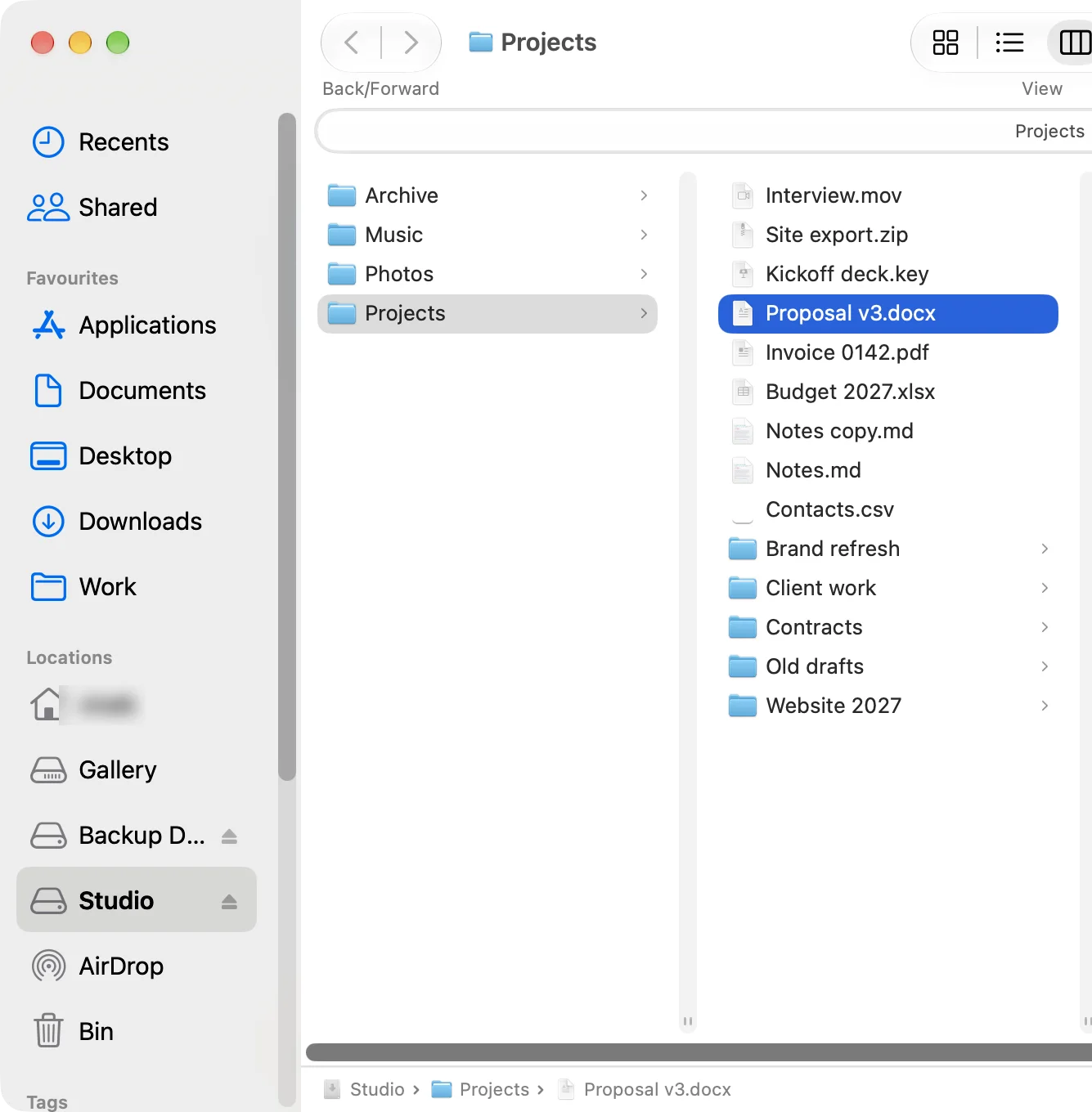
Column view (⌘3) shows the path you took as a row of columns: the drive, then the folder, then the folder inside it. It is good for drilling down one path at a time, but it shows only that path, not the whole tree around it.
A real folder tree, like File Explorer
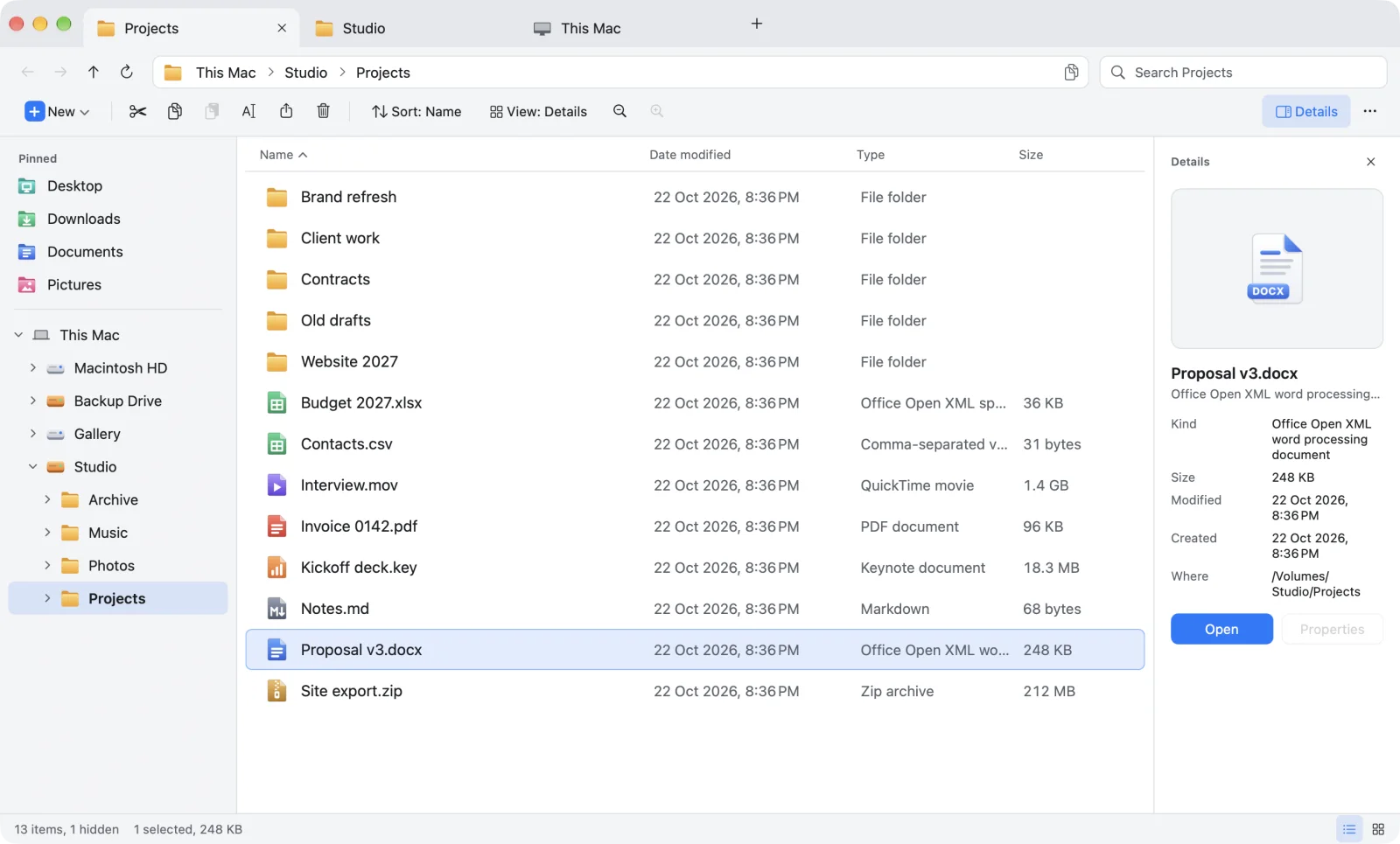
Origin puts a real tree in the navigation pane, the way File Explorer does: This Mac at the top, every drive below it, and every folder expandable in place. The folder you are in is highlighted, and your pinned folders sit above the tree. Click any folder in the tree to open it, while the file list on the right shows its contents with folders on top.
| Finder | Origin | |
|---|---|---|
| Folder tree in the side pane | ✕ Favourites and locations | ✓ |
| Expand a drive in the side pane | ✕ | ✓ |
| Expand folders in the file list | ✓ List view only | Use the tree |
| Where you are, highlighted | Only if it is in the sidebar | ✓ Anywhere in the tree |
Questions
Does Finder have a tree view?
Not in the sidebar. Finder's sidebar lists favourites, locations and tags, and none of them expand into folders. The closest things are list view, where folders expand with disclosure triangles, and column view, which shows one path at a time.
How do I expand all folders in Finder?
In list view, Option-click a folder's disclosure triangle to open every folder inside it. Right Arrow opens the selected folder. Both work only in list view.
Is column view the same as a tree view?
No. Column view shows the folders along one path, side by side. A tree shows every drive and folder in one pane, expandable wherever you like, with where you are highlighted.
Which Mac app has a folder tree like Windows Explorer?
Origin puts a File Explorer style tree in its navigation pane: This Mac, every drive and every folder, expandable in place, with pinned folders above it.
Sources: Apple: Mac keyboard shortcuts
The folder tree you know, on your Mac
Origin looks and works like Windows File Explorer, made properly for the Mac: a folder tree, an address bar, a command bar, tabs and real cut and paste. The beta is open now on TestFlight, and Origin is coming soon to the Mac App Store for macOS 14 or later. Join the beta and try it first.
Join the beta See the Origin file explorer for Mac